
Short answer
Create a Google family group at g.co/yourfamily and invite up to five people. Google automatically adds a calendar called Family that every member can see and edit on Android, iPhone or a computer. For a color per child, create one calendar per child in a browser, pick its color, and share it with your spouse.
Google Calendar is probably already on both your phones. That's the best argument for it, honestly: nobody installs anything, and it comes with a Google Account at no cost. Budget about fifteen minutes on a laptop (the phone app can't create new calendars, which trips people up), and do the color step on day one, before twenty soccer practices are sitting on the wrong calendar.
What is the Family calendar in Google Calendar?
It's a shared calendar Google creates automatically when you make a family group. Everyone in the group finds it in Google Calendar on any device they're signed in to, and anyone with access can add, change and delete events. The family manager owns it by default but can hand ownership to someone else. If a member leaves the group, they lose access.
Two details from Google's help page that catch families out:
- By default you don't get a notification when a family member creates, edits or deletes an event. You only get reminders for upcoming events, the same as your own calendar.
- If the family manager deletes the family group, the Family calendar and its events have to be deleted by hand.
The first one bites. Your spouse moves Thursday's chess club to 7:00 on Monday night, and unless you open the calendar, you find out Thursday at 6:15. We'd make a habit of texting each other whenever either of you edits something that's this week. Low-tech, but it works. (This is roughly where we started building Kidbud, though it doesn't fix silent edits either. What it adds is a named driver for each leg, covered further down.)
How do I create a family group in Google?
Sign in to your Google Account, go to g.co/yourfamily, and select Create a family group, then Get started. Confirm you're ready to be the family manager, enter the people you want to invite, and select Send. A family group holds up to six people, including you. Google may already have made one for you if you've set up a child account before.
- Go to g.co/yourfamily while signed in. If a group already exists, you'll see it here.
- Select Create a family group, then Get started.
- Under "Ready to be a family manager?", select Confirm.
- Enter your spouse's name or email (and anyone else) and select Send.
- Each person accepts the invitation from their email. You'll get an email when they do.
Google's rules, so nobody's surprised later. Members must live in the same country as you and be at least 13, unless you created the child's supervised account. Work and school accounts can't join. You can be in only one family group at a time, and you can switch groups only once every 12 months. That last rule is a good reason to have the parent who'll stick with it be the manager.
How do I color code Google Calendar by child?
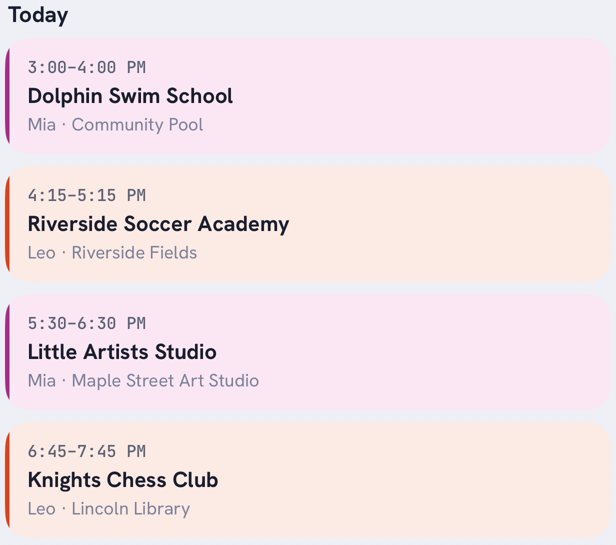
Give each child their own calendar. Google calendars each carry one color, so a calendar called "Mia" in purple and one called "Leo" in orange gives you color coding with no extra effort. Create them in a browser, since Google only allows new calendars there, then choose the color from the calendar's Options menu.
- On a computer, open Google Calendar.
- Next to Other calendars, click Add other calendars, then Create new calendar.
- Name it after the child and click Create calendar. Repeat for each child.
- Under My calendars, click Options next to each child's calendar and pick a color, or click Add custom color.
- Share each child's calendar with your spouse (steps in the next section).
This sits alongside the Family calendar rather than replacing it. We'd put kids' classes on the child calendars and keep Family for things everyone goes to, like a cousin's wedding or a dentist trip for two.
How do I share a calendar with specific people, like a grandparent or sitter?
Open the calendar's Settings and sharing, go to Shared with, click Add people and groups, and enter their email. Then pick what they can do. For a spouse, "Make changes and manage sharing" makes sense. For a grandparent who only needs to know where the kids are, "See event details" is enough. They accept from the email Google sends them.
| Google permission | What they can do | Who we'd give it to |
|---|---|---|
| See only free/busy (hide details) | See when you're busy, no event names or places | Rarely useful for families |
| See event details | See names, times, places and descriptions | Grandparents, an occasional sitter |
| Make changes (see private events as free/busy) | Edit events that aren't private | A regular caregiver |
| Make changes and see event details | Edit events and see who else has access | A co-parent in another household |
| Make changes and manage sharing | Full control, including sharing it onward | Your spouse |
On Android you can do this from the Calendar app: Menu, Settings, pick the calendar, then Add people or groups and Save. If the invitation never shows up, Google suggests checking spam, then removing and re-adding the person. For the iPhone side of things, see how to share a calendar with your spouse.
What are the best Google Calendar tips for families?
Keep it boring and consistent. One calendar per child, one shared Family calendar, and every event that needs a parent has that parent's name in the title. Add the address to every event so Maps works from the event. Turn on notifications for the child calendars on whichever phone belongs to the person who actually drives.
- Use repeating events for classes, and end the repeat on the last week of the term. Otherwise soccer haunts your December.
- Write "DAD" or "MOM" at the start of drop-off and pickup events. Crude, but you can read it at a glance from the lock screen.
- Set the event to start when you need to leave, not when the class starts.
- Look at the week together on Sunday. Five minutes, ideally before anyone's opened a laptop for work.
Where does Google Calendar fall short for after-school driving?
It shows the class, but nobody owns the drive. There's no field for who does the drop-off and who does the pickup, so you fake it in the title. And its alerts fire at a fixed time before the event. They don't check traffic, and they go to everyone who has notifications on, not to the one parent who's driving.
| Job | Google Calendar | Kidbud |
|---|---|---|
| Shared calendar on iPhone and Android | Yes | Yes |
| Color or filter by child | Yes, one calendar per child | Yes, filter by child |
| A named driver for each drop-off and pickup | Only by typing it in the title | Yes, each leg assigned to one parent |
| Leave reminder that accounts for traffic | No, fixed-time alerts only | Yes, sent to the assigned driver |
| Work meetings and everything else | Yes | No, kids' classes only |
| Cost | Included with a Google Account | $59.99 a year or $12.99 a month |
If your kids do one activity and the same parent always drives it, Google is plenty, and we'd tell you not to bother with anything else. The gaps show up later. Picture it: Leo's chess ends at 5:15 at the library, Mia's swim ends at 5:15 across town, and both events say "MOM" because someone copied last term's repeat. Google will happily remind you both of both. Our guide on what time to leave for drop-off or pickup covers the timing side.
How Kidbud handles the driving part
It's a family calendar for kids' classes, nothing else. You invite your spouse and any caregivers, add each child's classes, and assign every drop-off and pickup to one person. That person gets a traffic-aware Leave Now reminder, with separate timing for drop-offs and pickups: just as you leave, a 20-minute heads-up, or your own times.
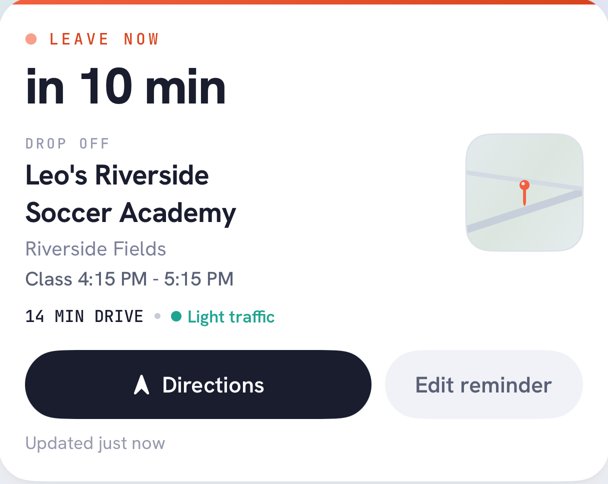
The honest catch: Kidbud doesn't sync with or import from Google Calendar, so kids' classes get typed in again. That's annoying for the first evening and we won't pretend otherwise. After that we'd keep Google for work and dentist trips, and Kidbud for the driving. One subscription covers everyone you invite.
Google shows the class. Kidbud says who's driving.
Assign every drop-off and pickup, and the driver gets a traffic-aware Leave Now reminder.


Frequently asked questions
How do I create a Google Calendar for my family?
Go to g.co/yourfamily, select Create a family group, confirm you'll be the family manager and invite up to five people. Google then creates a calendar called Family that everyone in the group can see and edit.
Does Google Calendar have family sharing?
Yes. A Google family group comes with a shared Family calendar, and you can also share any calendar you own with specific people by email and choose what each person can do.
Can kids use Google Calendar?
A child under 13 needs a Google Account that a parent creates and supervises through Family Link. If the family manager created that account, the child can join the family group and see the Family calendar.
How do I color code Google Calendar by child?
Create one calendar per child in a browser, then pick a color for each one from its Options menu under My calendars. Share each child's calendar with your spouse so you both see the same colors.
Does Kidbud sync with Google Calendar?
No. Kidbud doesn't sync with or import from Google Calendar. If you use both, keep Google for work and general plans, and Kidbud for kids' classes and who does each drop-off and pickup.
Sources
- Google for Families Help, Use a family calendar on Google
- Google for Families Help, Create a family on Google
- Google for Families Help, Create and build your family group
- Google for Families Help, Get started with Family Link
- Google Calendar Help, Create a new calendar
- Google Calendar Help, Share your calendar